MCP
Let an AI agent watch for campsites
Connect Claude, ChatGPT or any MCP client to AlertCamp, and it can search 70 park systems, read the drawn site maps, and create and manage cancellation alerts on your account — in plain language, as you.
https://api.alert.camp/mcp
Last updated: November 5, 2026
Coverage
Seventy park systems, one connector
An agent searches all of them through one tool. It never needs to know which booking platform a park sits on.
- Provincial or state park system covered
- National parks only (Parks Canada, Recreation.gov)
- Not covered yet
Canada — regional & conservation authorities
Canada — backcountry huts
Getting connected
Four steps, and the approval happens in the app
You need an AlertCamp account, in the app or signed in at app.alert.camp, and an AI client that supports remote MCP servers with OAuth. Add AlertCamp as a connector; if your client asks for a server address, give it https://api.alert.camp/mcp. It will hand you a short code and wait.
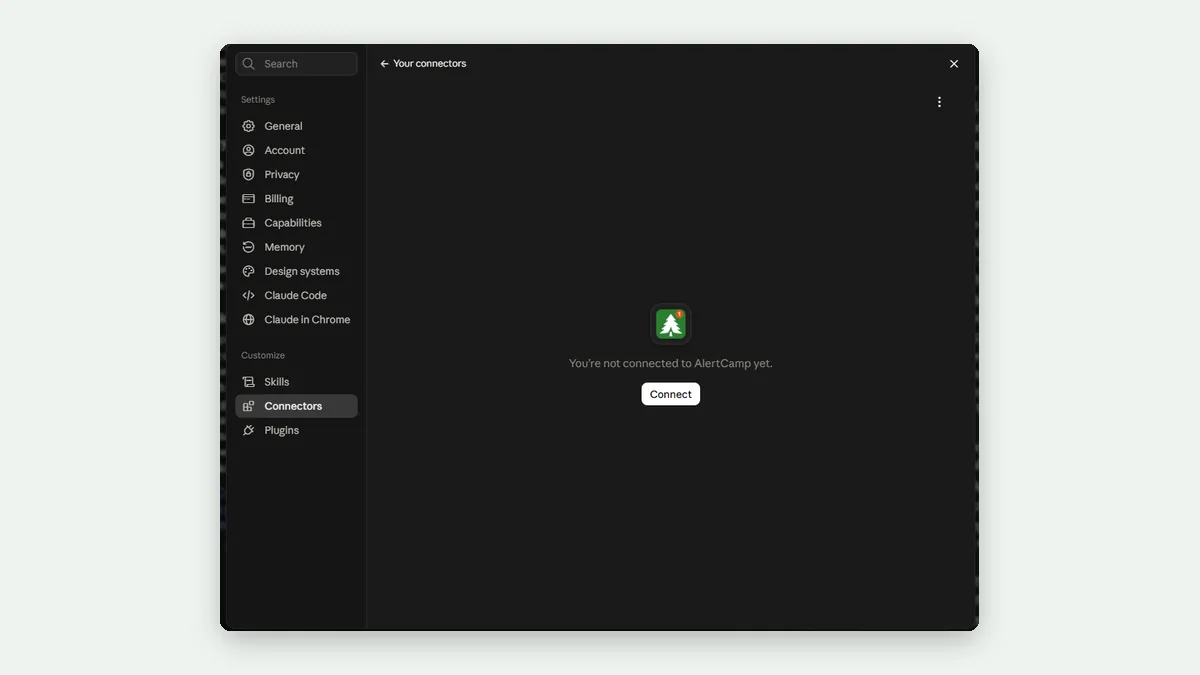
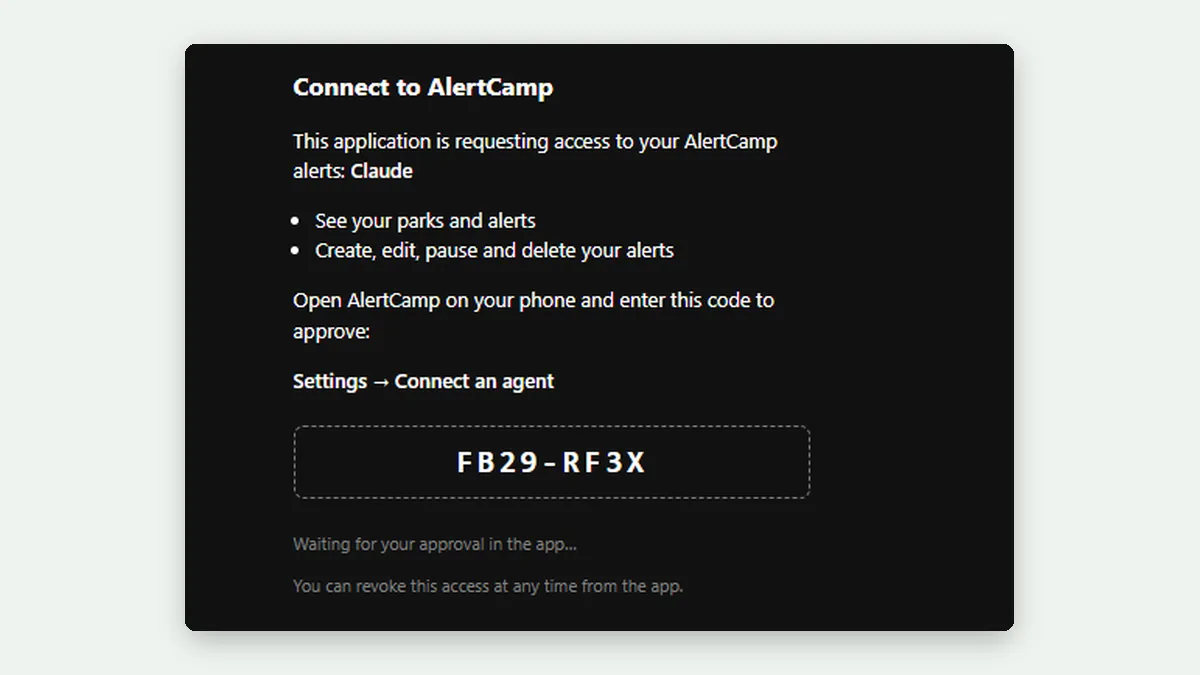
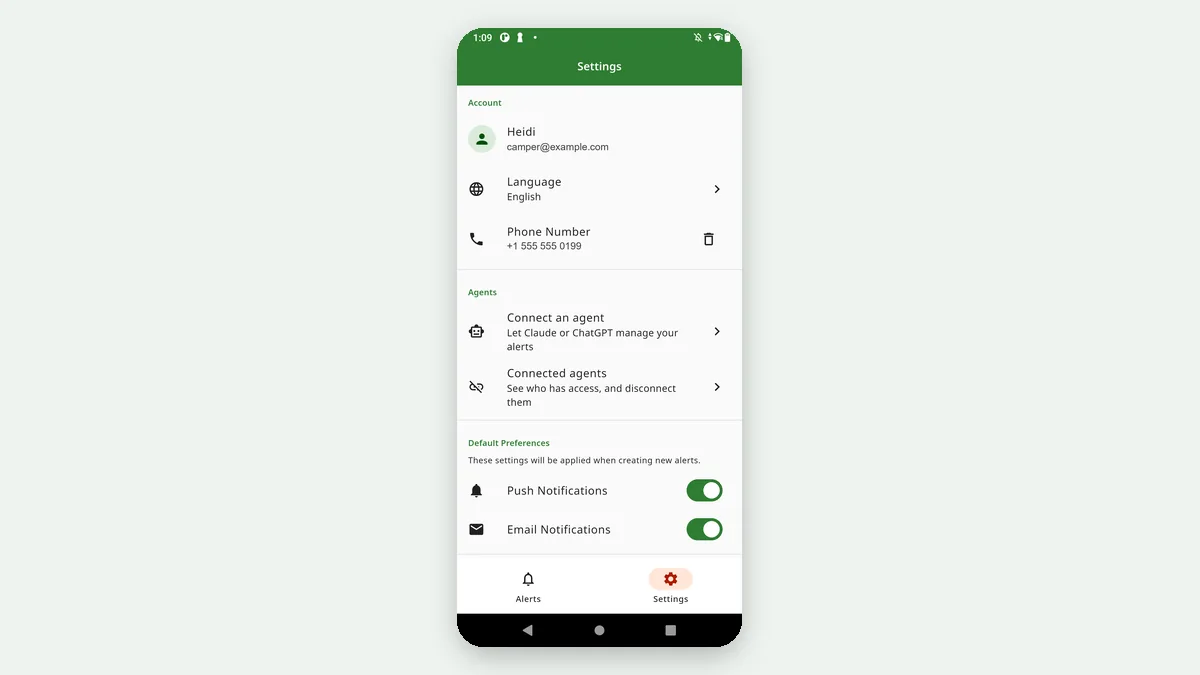
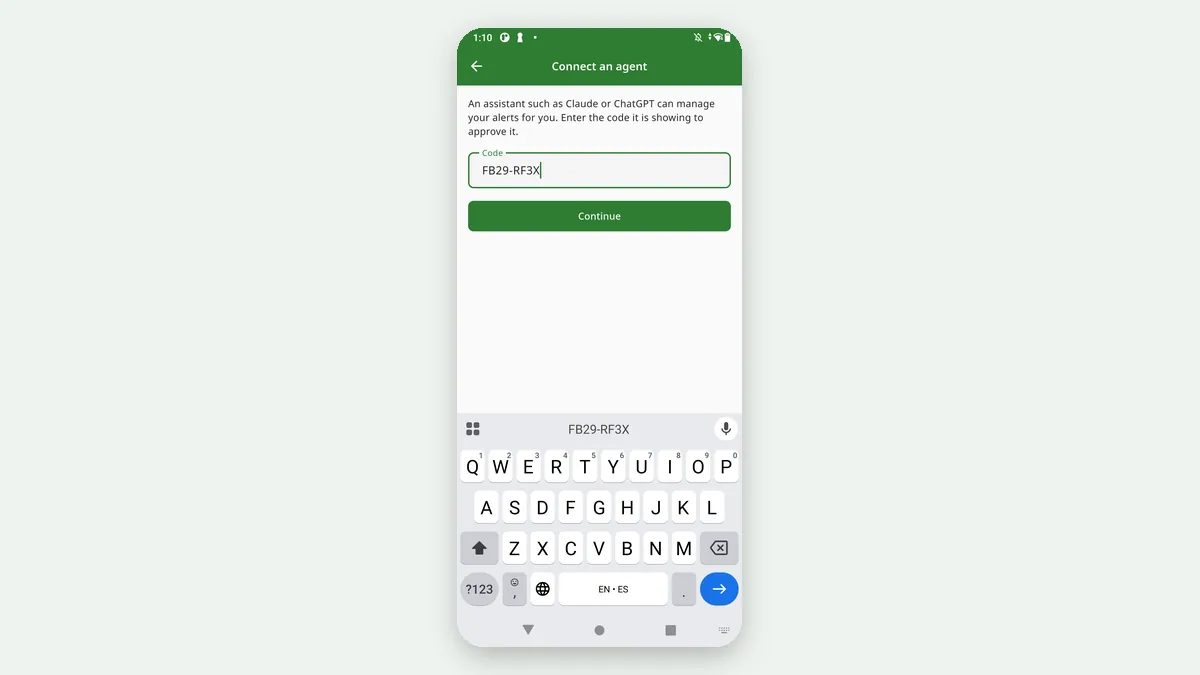
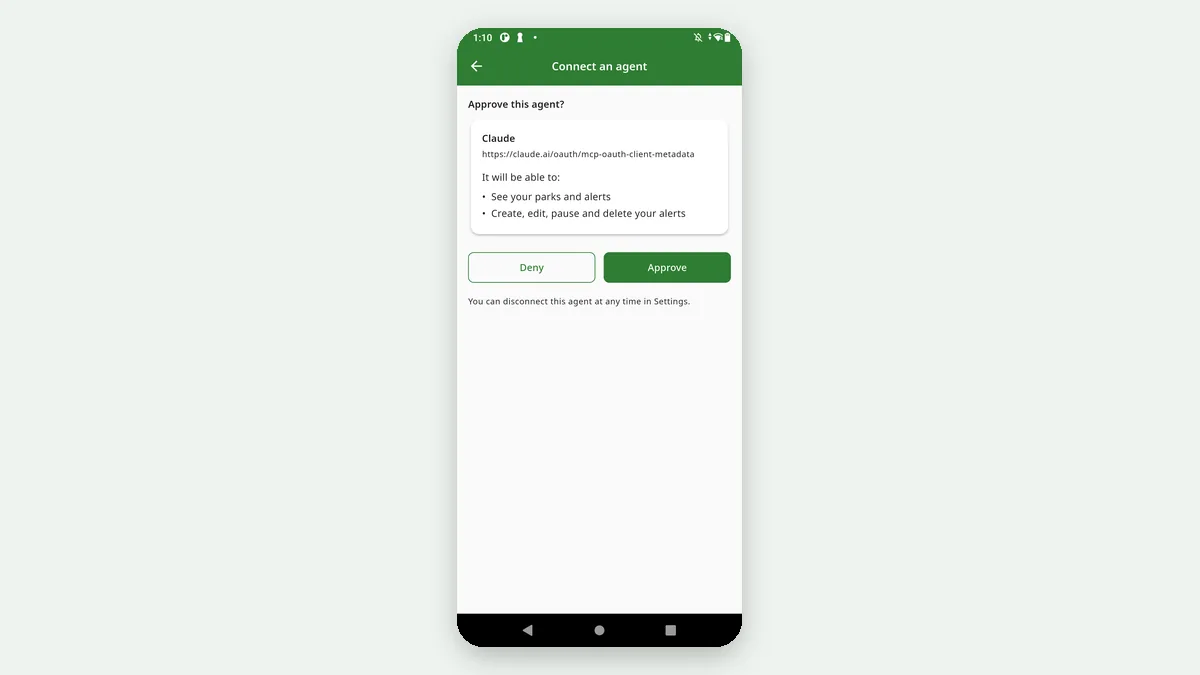
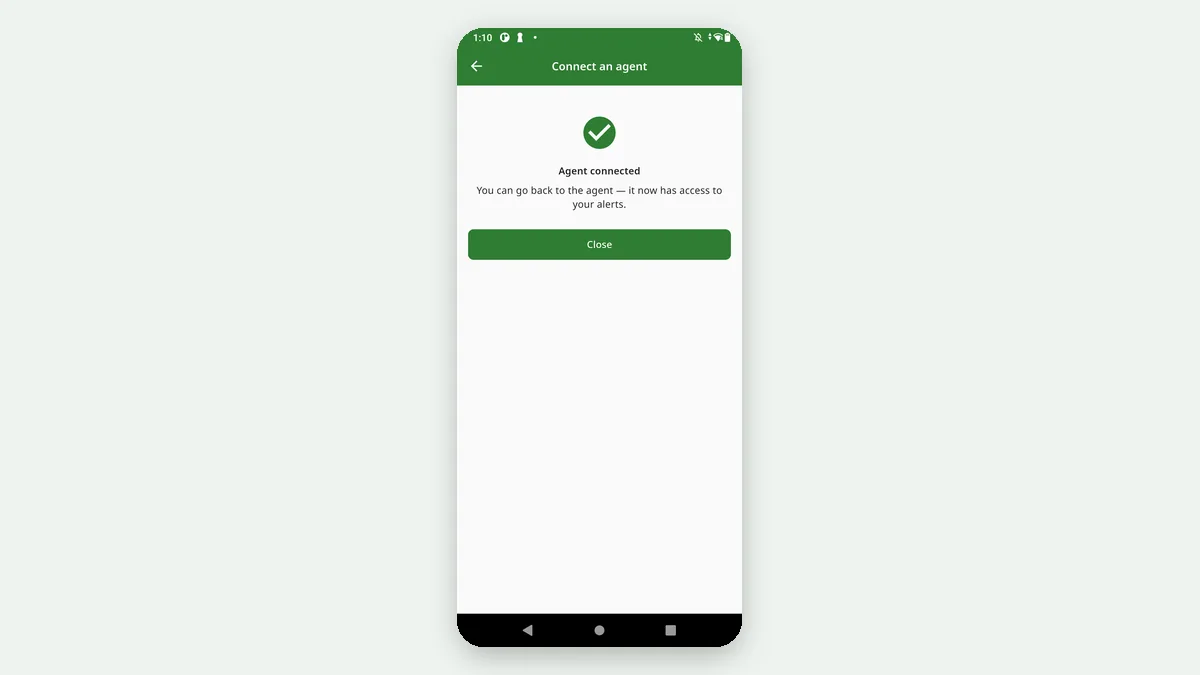
Your AI client, before it is connected
Then tap Continue.
The app shows the agent's name, where its identity document came from, and the permissions it wants.
Connecting from ChatGPT
AlertCamp is a published ChatGPT plugin. Open AlertCamp in the ChatGPT plugin directory and click Install plugin; no server address to type. The first time you ask ChatGPT something about camping, it starts the connection and hands you the short code, which you approve in the app or at app.alert.camp as above.
Connecting from Perplexity
Perplexity adds remote MCP servers as custom connectors, on its paid plans. In Settings → Connectors, choose Add custom connector, pick Remote, name it AlertCamp, enter https://api.alert.camp/mcp and set the transport to Streamable HTTP. Leave authentication on OAuth: Perplexity registers itself with AlertCamp automatically, then opens the same short code as any other client, which you approve in the app. On the approval screen a client that registered this way is shown by the website that will receive the connection, since its name is not verified.
Self-hosted clients: Odysseus, Open WebUI, LibreChat, Goose
Any client that speaks MCP over Streamable HTTP with OAuth can connect, including the ones you run yourself. Add a remote MCP server with the address https://api.alert.camp/mcp and leave authentication on OAuth. The client registers itself, opens the approval page with a short code, and you approve it in the app like any other agent. Clients that take the code on a localhost address work as they are; nothing has to be exposed to the internet.
What you are approving
See your parks and alerts, and the openings they have found.
Create, edit, pause, resume and delete your alerts.
An agent acts as you: it inherits your plan, its alert and site limits, and its scan speed, exactly as if you had tapped the buttons yourself. Connecting an agent does not buy anything and does not change your subscription. A connection lasts up to 180 days unless you disconnect it sooner, and codes expire after 10 minutes.
What an agent never receives:
- Your password
- Your email address
- Your phone number
- Payment or subscription details
- Anything belonging to another user
Reference
All 26 tools
Grouped by what they are for. Tool names are the identifiers your client will show in a tool call.
Finding a place to camp
8 tools| Tool | What it returns |
|---|---|
search_parks |
Parks by name across every provider, with each park's id, provider and activities. The starting point for everything else. |
get_park |
One park in full: activities, coordinates, booking URL, whether its backcountry is sold as zones rather than numbered sites, and whether it sells an entry date rather than a run of nights. |
list_park_campgrounds |
The campgrounds inside a park — what an alert actually watches — including Parks Canada day use and Recreation.gov permit areas. |
list_campground_zones |
The loops and sub-campgrounds within one campground row. Sandbanks is a single row holding Outlet River A and B, Cedars, Woodlands and West Lake A, B and C — stop at the campground and a park looks like one undifferentiated pool. Also returns how many sites one of your alerts may watch. |
list_zone_sites |
Individual sites, with position (real coordinates where the inventory is geographic, map pixels where it ships a drawn sheet), the site's season, when unreleased inventory goes on sale, and what each site is like where the provider publishes it — shade, distance to water, fire pit, electrical amps, driveway surface. |
get_zone_map |
The drawn site map as an image, with our own site numbers printed at each pin, plus a URL to the same labelled picture so it works in any client. For the questions rows cannot answer: which sites sit by the water, at the end of a loop, away from the road. |
list_equipment_options |
The equipment vocabulary for that park's provider — tent, van, 30-foot trailer — as the ids a filter needs. Each option's length bracket means at most that length. |
get_day_use_window |
Which dates a day-use grid actually offers, how many days one alert may span, and which slot-and-date pairs have already closed. Day-use seasons appear nowhere in a provider's API except the grid itself, so dates picked without this are a guess. |
Watching for a cancellation
7 tools| Tool | What it does |
|---|---|
create_alert |
Start watching: a park, the campgrounds or individual sites to cover, a date window and a number of nights. Optionally filtered by equipment, party size, electrical hookup, accessibility or pets — and set to notify by push, email or SMS. |
update_alert |
Change an alert's dates, nights, filters or notification channels. Widening the date window is the single most useful edit. |
list_my_alerts |
Everything being watched, with how recently each was scanned. |
get_alert |
One alert in full. |
pause_alert |
Stop scanning without losing the alert. |
resume_alert |
Start a paused alert scanning again. |
pause_all_alerts |
Stop scanning the whole account at once — the same master switch as in the app. Nothing is deleted. |
resume_all_alerts |
Turn the master switch back off. Openings found while paused are not replayed. |
delete_alertpermanent |
Remove an alert for good. The one action that cannot be undone — pausing is reversible. |
Watching a multi-night traverse
8 tools| Tool | What it does |
|---|---|
list_routes |
Planned traverses for a park — the Rockwall, the Skyline, a coastal loop — grouped by trail, each with the paces it can be walked at. An empty list is the normal answer for most parks: it means no route has been planned there. |
create_itinerary |
Watch a trip that needs a different site each night, which a regular alert cannot express. Either pass a planned route's id, or list the nights yourself — each night naming the zones that would satisfy it. Every start day in the window is tried, and the whole route counts as one alert against your quota. |
update_itinerary |
Change a route's window, party size, tent pads or notification channels. The nights themselves cannot be edited, because their order and adjacency are validated as a whole. |
list_my_itineraries |
Your route alerts. Regular alert listings deliberately exclude them, so that a four-night traverse does not read as four alerts — which means this is the only place they appear. |
get_itinerary |
One route in full, night by night. |
pause_itinerary |
Stop watching a route, keeping its nights. |
resume_itinerary |
Start watching a paused route again. |
delete_itinerarypermanent |
Remove a route and stop watching every night of it. It has to be planned from scratch afterwards, so pausing is almost always the better move. |
Seeing what turned up
1 tool| Tool | What it returns |
|---|---|
list_matches |
The openings your alerts have found, newest first, each carrying what became of it: rebooked (a later scan saw it taken, and when), open at last scan (still being watched, as of the last time we looked), or unverified (the alert is paused, deleted or past its window, so nothing is known since). Pass the cursor from a previous call to get only what is new. |
Try it
Things worth asking for
Nothing here needs special phrasing. These are simply the requests that reach the more interesting tools.
“Golden Ears is sold out for the August long weekend. Watch every campground for two nights.”
search_parkslist_campground_zonescreate_alert
“At Rathtrevor Beach, which sites are closest to the beach? Watch those.”
get_zone_maplist_zone_sitescreate_alert
“We tow a 30-foot trailer and need power. Watch Alice Lake for any weekend in July.”
list_equipment_optionscreate_alert
“Porteau Cove walk-in sites only, and it has to allow dogs.”
list_campground_zonescreate_alert
“What dates can I even book for Lake O'Hara day use right now?”
get_day_use_windowcreate_alert
“What am I watching, and has anything opened since we last spoke?”
list_my_alertslist_my_itinerarieslist_matches
How an agent hears about an opening
Nothing arrives on its own
MCP gives an agent no way to be woken up, so an agent finds out about an opening only when it looks — the next time you talk to it, or on a schedule if your AI client can run one. Your own push and email notifications are unaffected, and they remain the fastest way to hear about a cancellation.
An opening is also a snapshot of what was free when the scan ran, not a live reading. Cancelled sites are often rebooked within minutes, so a good agent will tell you how old the reading is rather than promise you a site.
Disconnecting
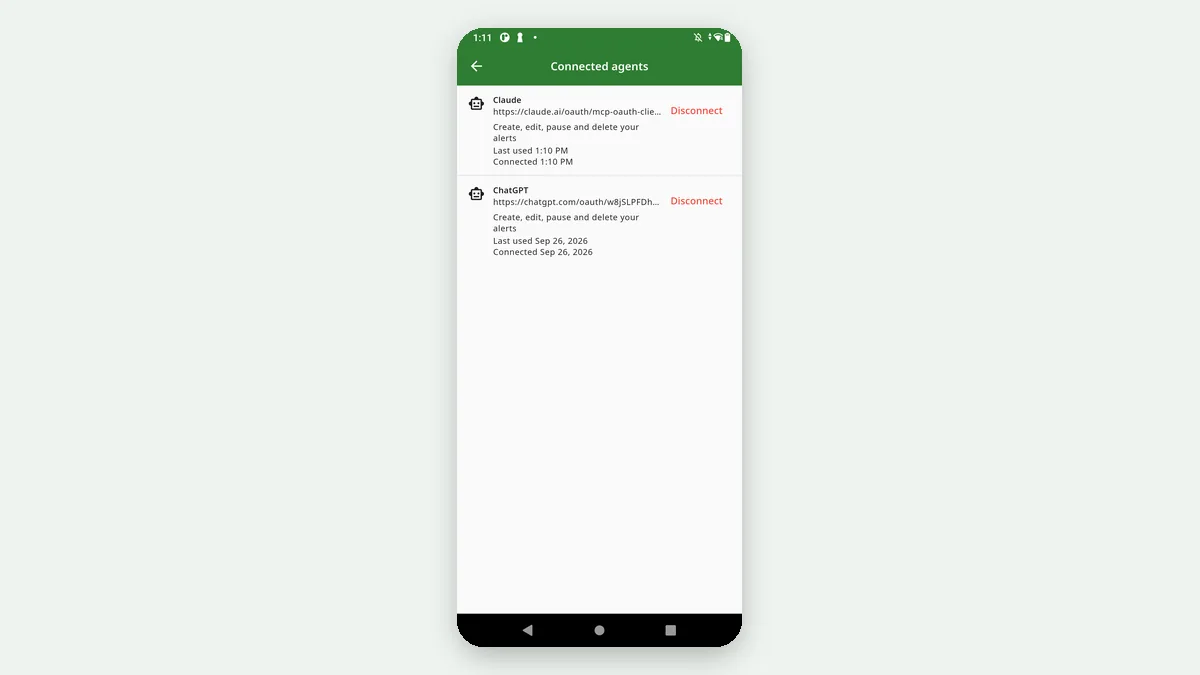
Open Settings → Connected agents. The list shows every agent that has ever had access, when it connected and when it was last used. Tap Disconnect on any of them.
Revocation takes effect immediately — we check it on every single request rather than waiting for the connection to expire. Your alerts are untouched and keep running exactly as before. We keep the disconnected entry in the list, so you can still see that an agent once had access and when you withdrew it.
Privacy
Section 4 of our Privacy Policy covers connected agents in full: what they can reach, what we store about a connection, and how long we keep it.
The point worth repeating here: once an agent reads your data, that data is in the hands of the AI provider you connected it to, and their privacy policy — not ours — governs what happens to it next, including whether it is retained or used to improve their models. Please read it before connecting.
Something not working?
Email support@alert.camp and we typically respond within 24 hours. Our FAQ covers how alerts and plans work in general, and modelcontextprotocol.io explains the Model Context Protocol itself.